


Table of Contents
Below is a step-by-step tutorial to block a website in Windows (works for Chrome, Edge, Firefox, etc.) using the Hosts file. This method blocks the site on the entire computer.
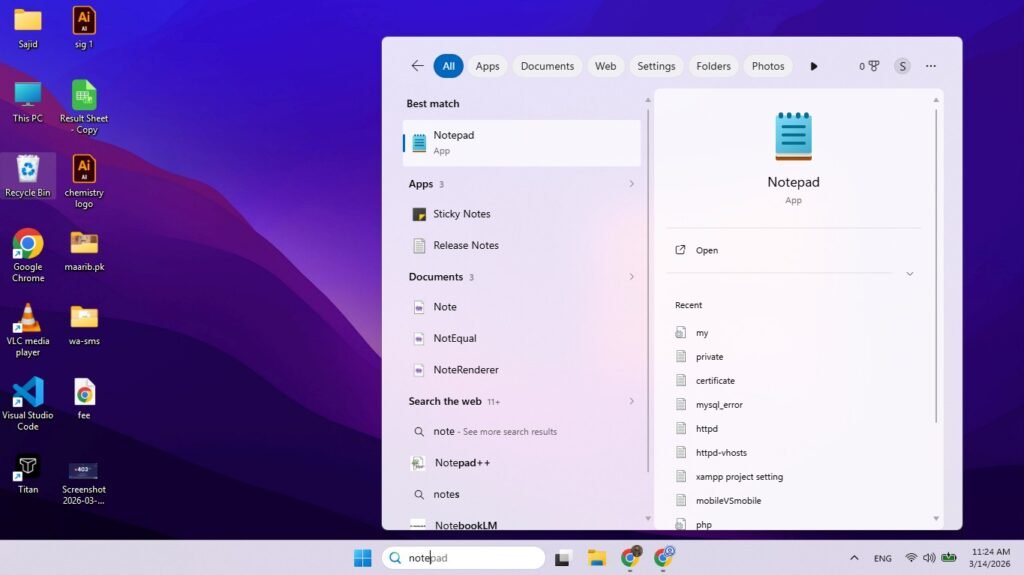
Step 1 — Open Notepad as Administrator
Click the Start Menu.
Search for Notepad.
Right-click Notepad.
Click Run as administrator.
This is required because the system file cannot be edited without admin permission.
Step 2 — Open the Hosts File
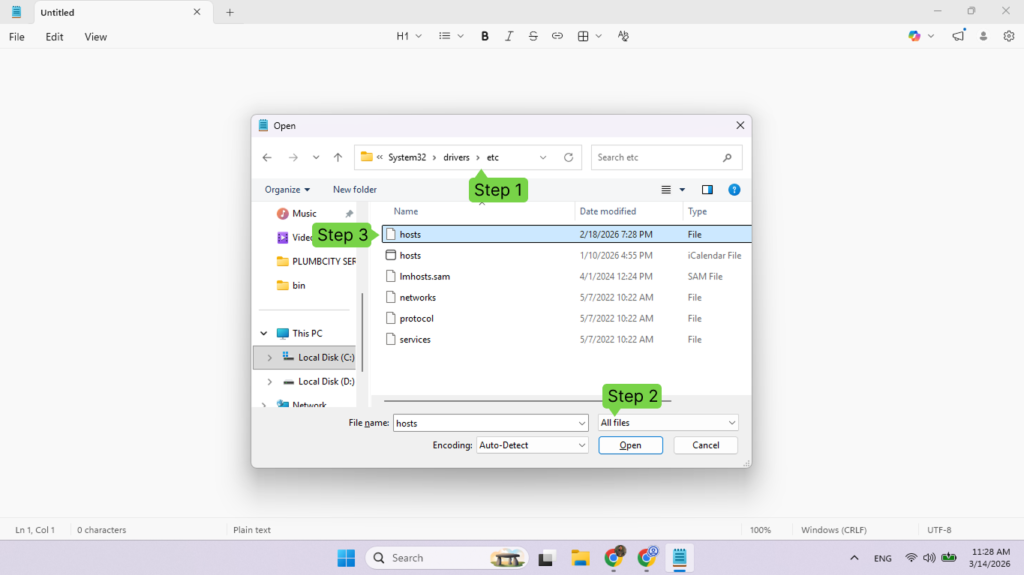
Inside Notepad:
Click File → Open.
Navigate to this location: C:\Windows\System32\drivers\etc
Change file type from Text Documents (*.txt) to All Files (.).
Select hosts and click Open.
Step 3 — Add the Website You Want to Block
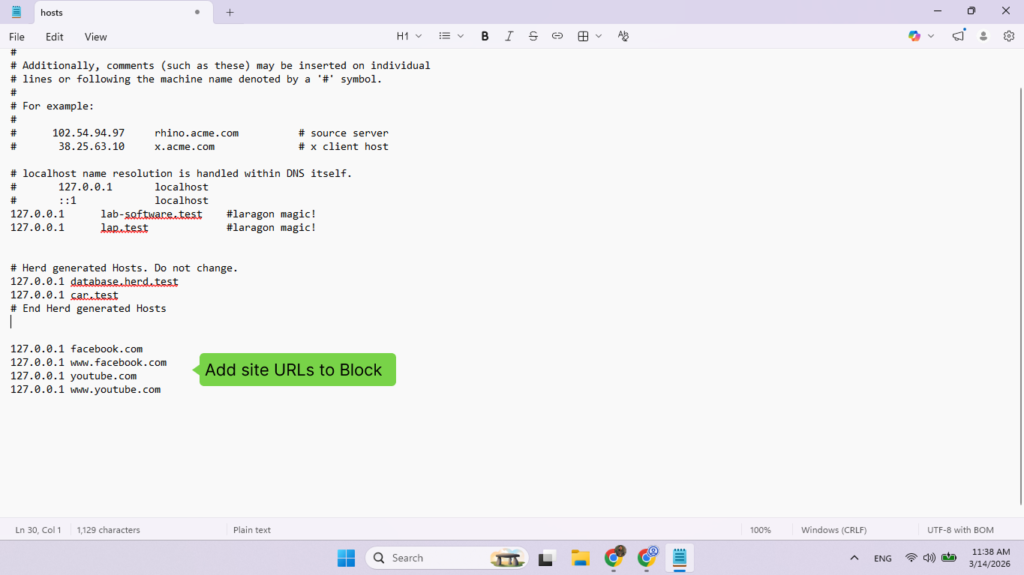
Scroll to the bottom of the file and add a new line.
Example:
					127.0.0.1 facebook.com
127.0.0.1 www.facebook.com
127.0.0.1 youtube.com
127.0.0.1 www.youtube.com
Explanation:
127.0.0.1 = your local computer
The website will redirect to your computer instead of the internet, so it won’t load.
Step 4 — Save the File
Click File → Save or simple press shortcut Ctr + S
Close Notepad.
Your changes are now active.
Step 5 — Test the Block
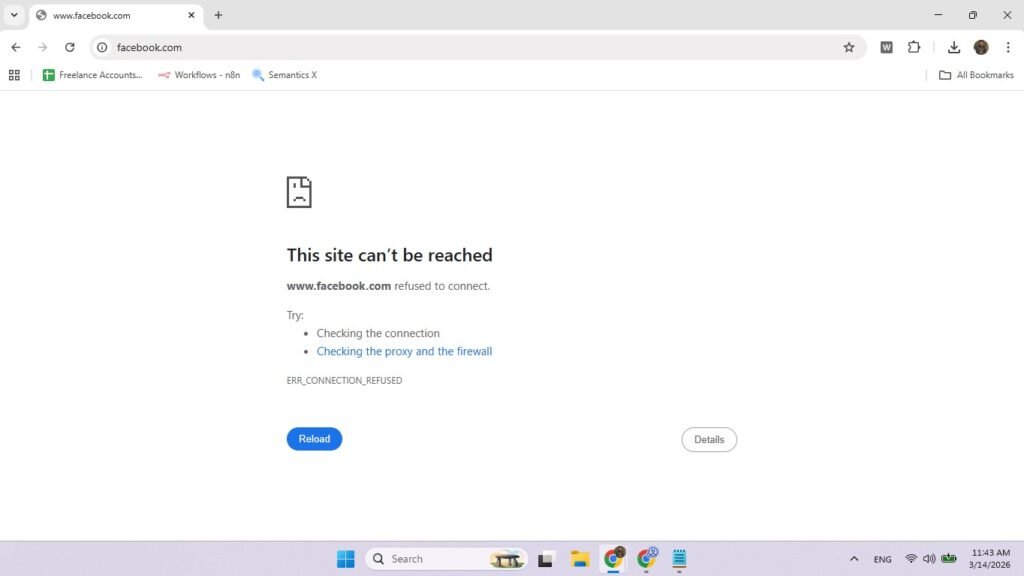
Open a browser and try visiting the blocked site.
Example:
facebook.com
You should see an error like: “This site can’t be reached.” Screenshot Example
You should see an error like:
“This site can’t be reached.”
Screenshot Example
How to Unblock a Website
Open the hosts file again
Remove the line:
127.0.0.1 facebook.com
Save the file.
The website will work again.
Pro Tips
- Works for all browsers
- Blocks the site for all users on the computer
- No software required
If a site still opens, also block subdomains like:
					127.0.0.1 m.facebook.com
127.0.0.1 login.facebook.com